 | End Of Service Life (EOSL) Zebra no longer provide services or support for P100i, P110i, P110m, P120i, P330i, and P430i products. This knowledge article is for your reference only and is no longer proactively updated.
For more details, refer to Discontinued Printers. If you are interested to upgrade your products, Contact Zebra. |
Cause or Overview
Configuration of the driver may be incorrect or in some cases the incorrect ribbon type may be being used.
Solution
Depending on your printer model, you will have different methods of increasing the darkness of black print on your cards. Below are the typical procedures for each based off the printer model that you have:
Note: It is always recommended to ensure that you have the current drivers and firmware for your printer to ensure that the problem is not caused by an issue corrected by more current firmware or driver releases.
Updating Zebra Card Printer Driver and Firmware Read More>>
Also, if you are using third party Card stock (non-Zebra brand), it is recommended to test with Zebra media to ensure the third party media is not the cause of the poor ink transfer.
Zebra Performance Class and Value Class Printers (P100i, P110i, P110m, P120i, P330i, P430i):
Step one as always is to ensure you have the proper ribbon type selected in your driver within the printing preferences (this can be accessed after getting into the Printer's Properties). The driver should detect the ribbon so long as the RFID chips on the ribbon and in the printer are properly functioning. You can also set the Black Panel Setting of the Driver to "Except in Color Picture". This will tell the printer to print everything that is not a color picture using the black panel in the ribbon:
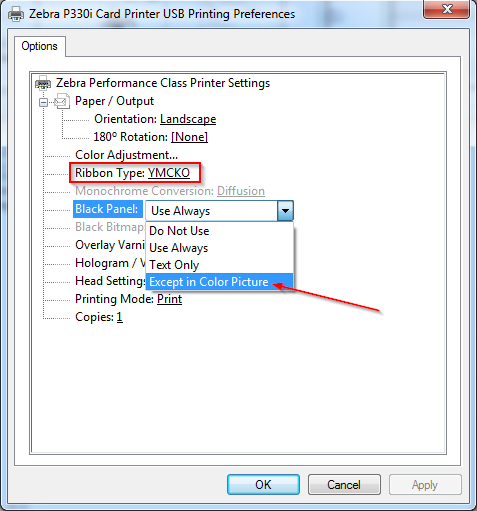
Once you have the proper ribbon selected and have the Black Panel set to "Except in Color Picture" attempt printing again to check the results.
If you using Monochrome ribbon (one color, typically black) you can attempt sending a "+V" command to the printer to adjust the Black Print Speed (accepted values: 1-9). The slower the speed the darker the black printing should be. To set the print speed to 2, you would send a +V 2 command to the printer. For more information on sending commands to the printer, click the following link. Read More>>
+V command details Read More>>
Zebra ZXP Series 1 and ZXP Series 3 Card Printers:
Similar to the preview product line, you will have to access your Printing Preferences via the printer's properties to make adjustments to the black print quality. There are two primarly locations to adjust settings in an attempt to correct the quality of the black printing on your cards. Each is detailed below:
If using a full color ribbon such as a YMCKO ribbon, the black extraction settings would be the first section of the printer settings to adjust. There will be black extraction settings for both the front and the back of the card (back of card only if doublesided printer is being used). Therefore, if the issue is only encountered on one side of the card, make the necessary changes to that side (front or back). You can access these settings via the "K Panel Options":
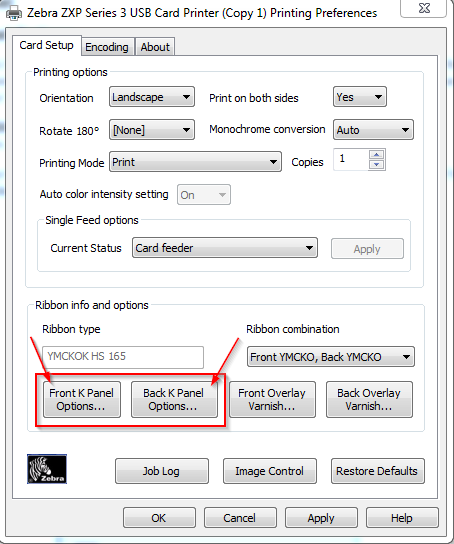
When you click on the K Panel Options for the side of the card you are experiencing issues with you will see the following dialog box displayed:
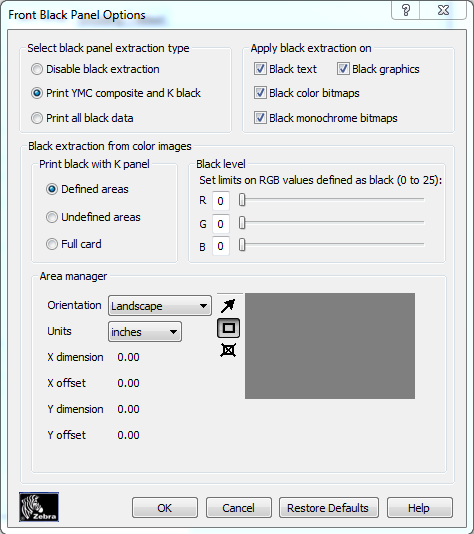
The appropriate selection to make is based off what objects/images are being printed on the card and where they are being printed. For more information on the appropriate selections, click the following link which includes examples and information on when to select which setting. Read More>>
The second option you have of modifying the quality of the black print that you are receiving is to adjust the "Monochrome Conversion" settings. Primarily you will use this when you have a Monochrome ribbon installed and being used. It is used to control multi-tone printing when using the one color ribbon. This can be done by within the Card Setup tab of the Printing Preferences:
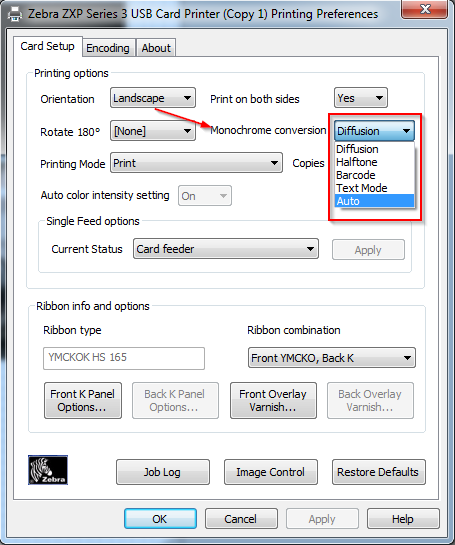
Note: These options my be different based off the ribbon combination/type installed. For example, if you have your Ribbon combination set at Front YMCKO, Back YMCKO, you will only see the Auto, Barcode, and Text Mode options.
Ideally, leaving the Monochrome Diffusion at Auto would provide optimal black output. However, depending on the ribbon being used and the images/objects being printed on your cards, this may need to be modified. Attempting this setting on Barcode would be the initial recommended adjustment. For more information on Monochrome Conversion settings click the following link. Read More>>
Zebra ZXP Series 7 and ZXP Series 8 Card Printers:
The ZXP Series 7 and Series 8 are similar to the ZXP Series 1 and 3 Card Printers, but the interface of the driver settings (printing preferences) and some options are slightly different. Below are setting that you will need to look into regarding correctly black panel printing issues:
The first step to take is to use the Black Panel Optimization tab to adjust the settings being used for the K panel. This will be found within the printer's printing preferences:
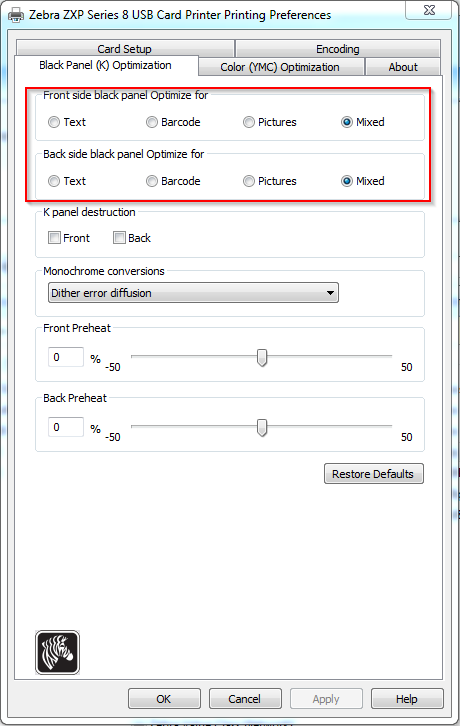
Note: The ZXP Series 7 will not have the Front and Back Preheat options.
The initial recommendation when seeing poor black print on the cards is to attempt printing with these settings at "Barcode". However, depending on your card design and media, you may need to make another selection. For more information on selections and the K panel optimization, click the following links:
ZXP Series 7 Black Panel Optimization Read More>>
ZXP Series 8 Black Panel Optimization Read More>>
The second option you have is to adjust the Black K Panel Extraction (similar to the ZXP Series 1 and ZXP Series 3). This again can be done through the Card Setup tab of the printing preferences:
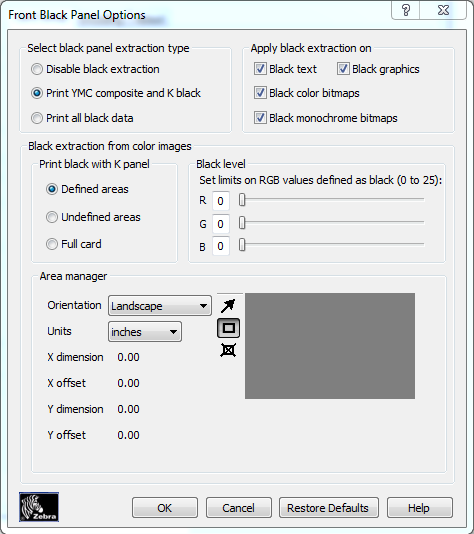
This option will be present for both the ZXP Series 7 and ZXP Series 8. For more information on selections and adjustments that can be made to optimize your card output, click the following links:
ZXP Series 7 Black Extraction Read More>>
ZXP Series 8 Black Extraction Read More>>
Zebra ZXP Series 9
The ZXP Series 9 is similar to the ZXP Series 1 and 3 Card Printers, but the interface of the driver settings (printing preferences) and some options are slightly different. Below are setting that you will need to look into regarding correctly black panel printing issues:
Use the Black Panel Optimization tab to adjust the settings being used for the K panel. This will be found within the printer's printing preferences:
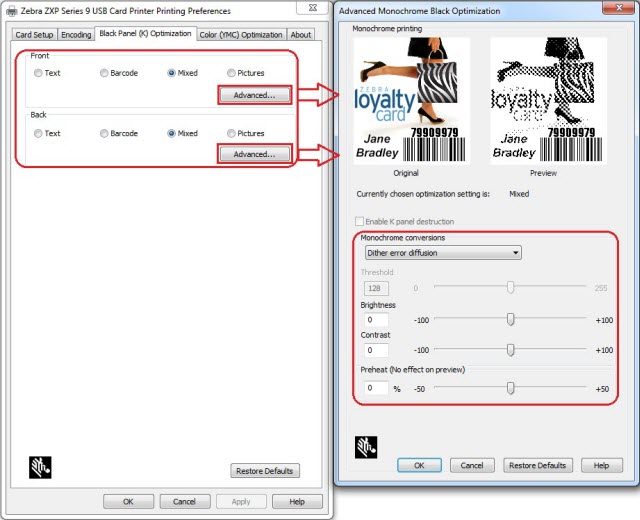
Helpful information
Troubleshooting Print Quality Issues (All Printers except ZXP7 and ZXP8) Read More>>
Increasing Printhead Resistance or Darkness (All Printers except ZXP7 and ZXP8) Read More>>
ZXP1 and ZXP3 Monochrome Adjustments Read More>>