Preparation
Download and Install Zebra Printer Driver v10 here.
Procedure
- Find the installed printer driver and click Manage.
- Click Printer properties.
- Select Driver Settings tab.
- Navigate to Fonts > Add > Download....
* If the driver installed v10 as above or automatically installed via Windows update,
Zebra Setup Utilities (ZSU) will load the
ZDesigner v10.
- Find and select desired fonts from the list, font styles, and preferred memory and click Download.
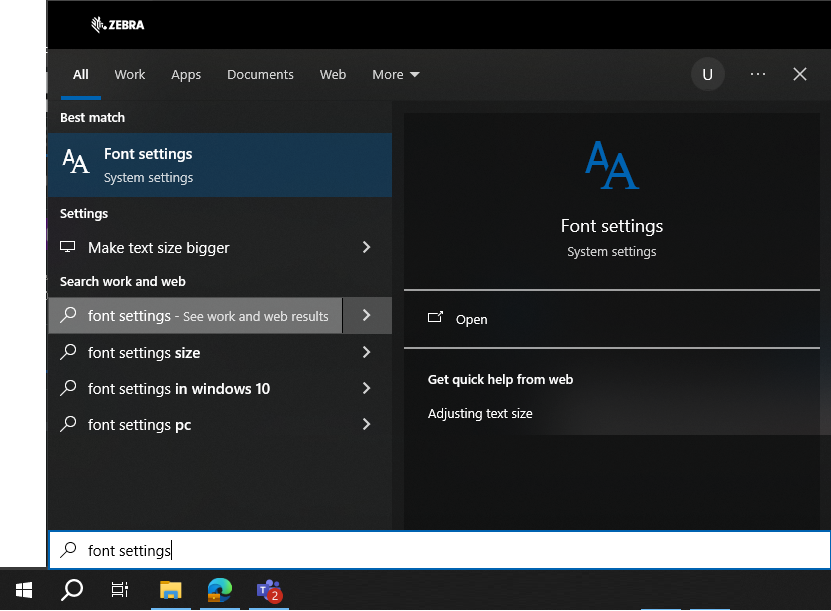
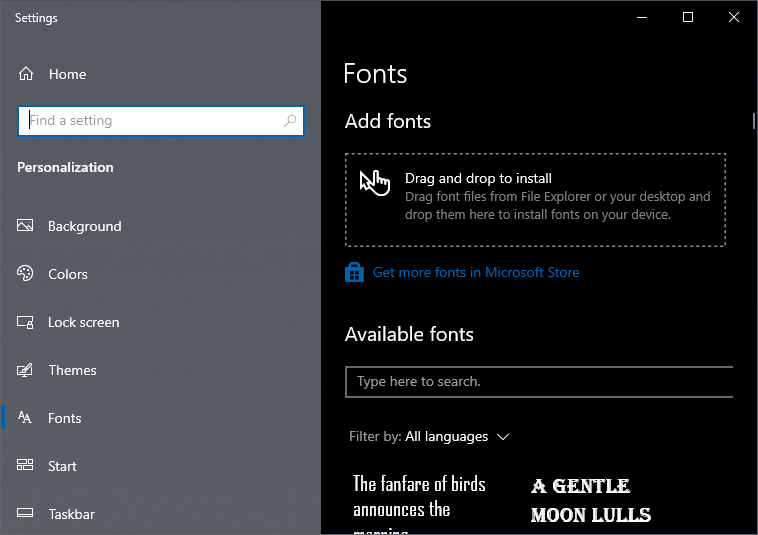
 | NOTE You will only find here the list of letter fonts installed locally in Windows, so, please become sure to do this before, then, restart your PC. |
- Click Apply button then check the font file name. (Example for 'Gadugi TT').
* File directory list can be checked via multiple ways.
- Network printer via TCP/IP > Directory Listing.
- Test print with downloaded font file via Zebra Setup Utilities.
Helpful Information: