You must have a printer configured for Ethernet connectivity, as well as an active network cable, to connect to the unit. Also, please ensure you have downloaded the current drivers and firmware for the printer from Zebra.com. Refer to the article: Checking Driver and Firmware Version for Zebra Card Printers for more information.
Overview
Printers configured with an Ethernet port do not need to be locally connected to a PC via USB to print. If you have Ethernet connectivity, you can configure the printer for your network and allow for printing from multiple workstations to one printer.
Procedure
The first step is to connect your network cable to your printer. If your network has DHCP enabled and will assign an IP to the printer, continue moving through the steps below. If your network will not assign an IP address to the printer, click the following link for instructions on assigning an IP to a printer that will not receive a DHCP address from the network. Refer to the article: IP Address is Listed as 192.168.254.254 on Zebra Card Printer for more information.
Setting IP Address and other Network Settings:
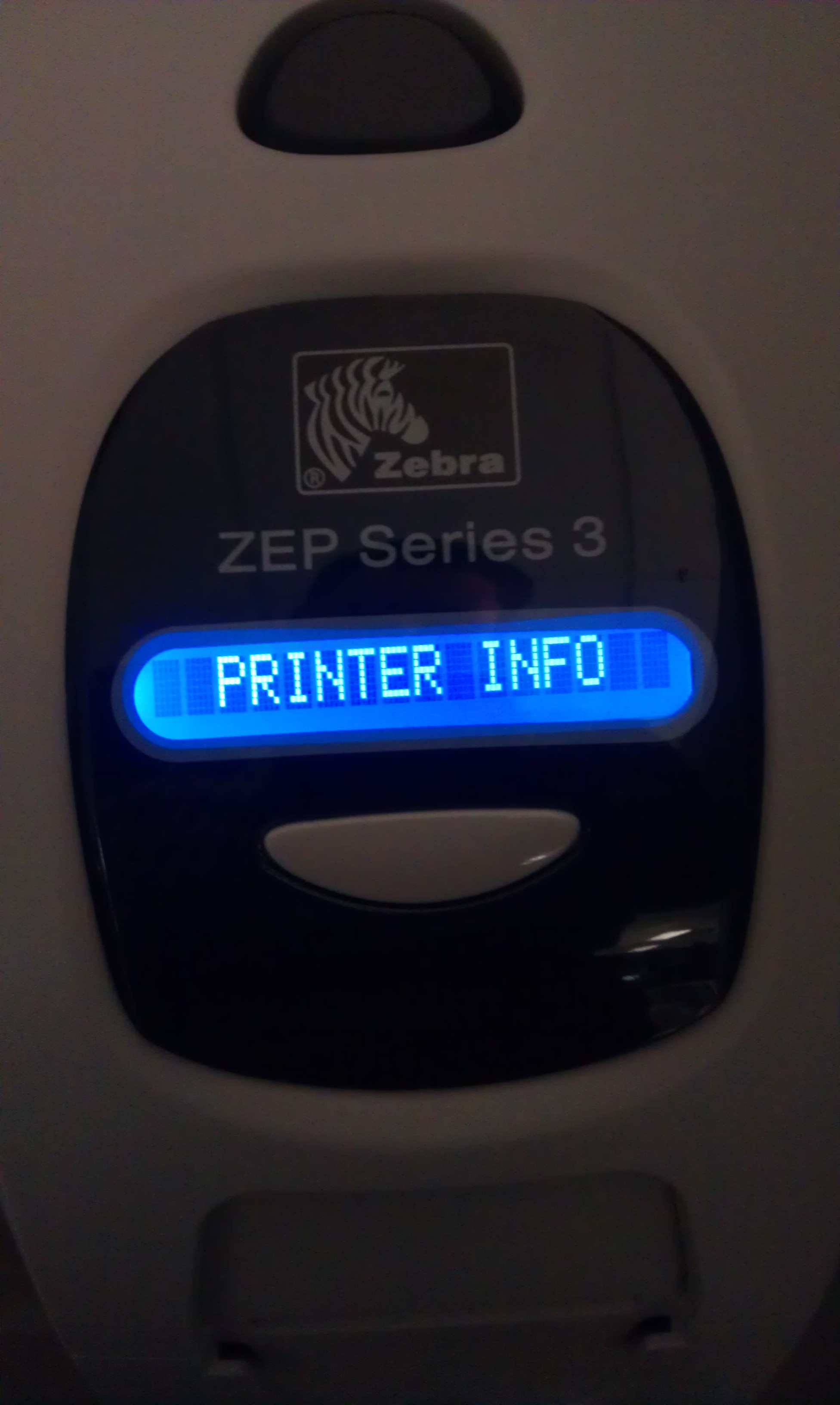
- To find the IP that your network has assigned to the printer, you will need to turn the printer off, hold in the feed button on the front of the printer under the LCD, and turn the printer on while continuing to hold the button in until you see Printer Info displayed:
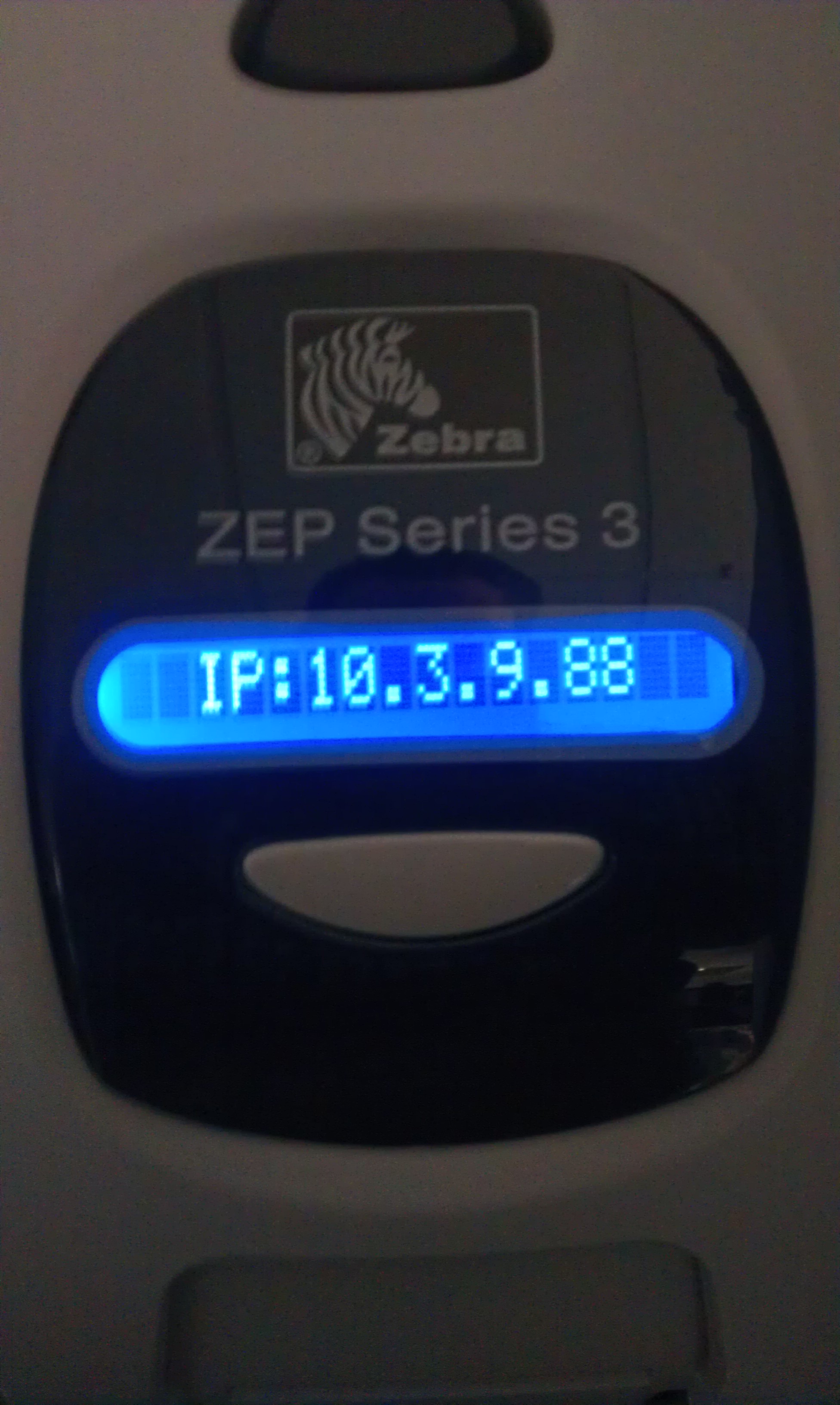
- Once you see Printer Info displayed, press the front panel button several times until you see the IP address:
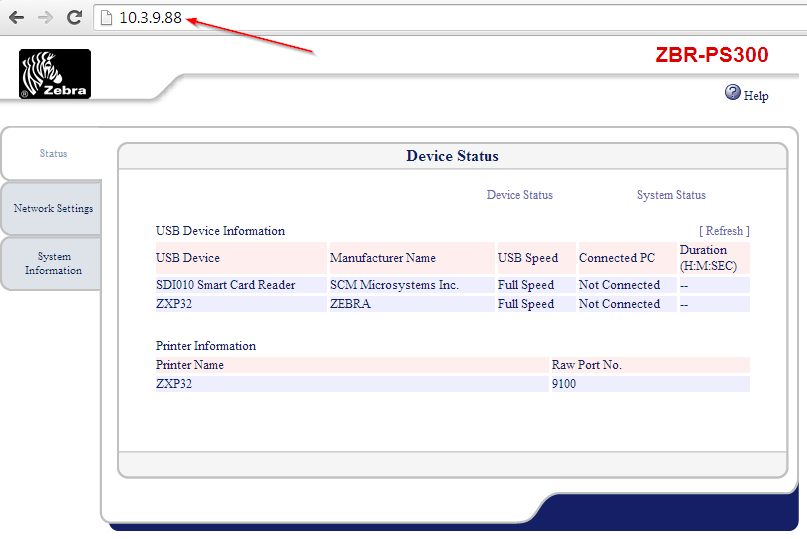
- You can then use the printer's web interface to modify the network settings. Type the IP address into a web browser (Internet Explorer, Mozilla Firefox, Google Chrome, etc.) and you should see the web interface displayed:
- Click Network Settings and you will be prompted for a login. The username is admin and the password is 1234. This will grant you entry to modify the network settings:
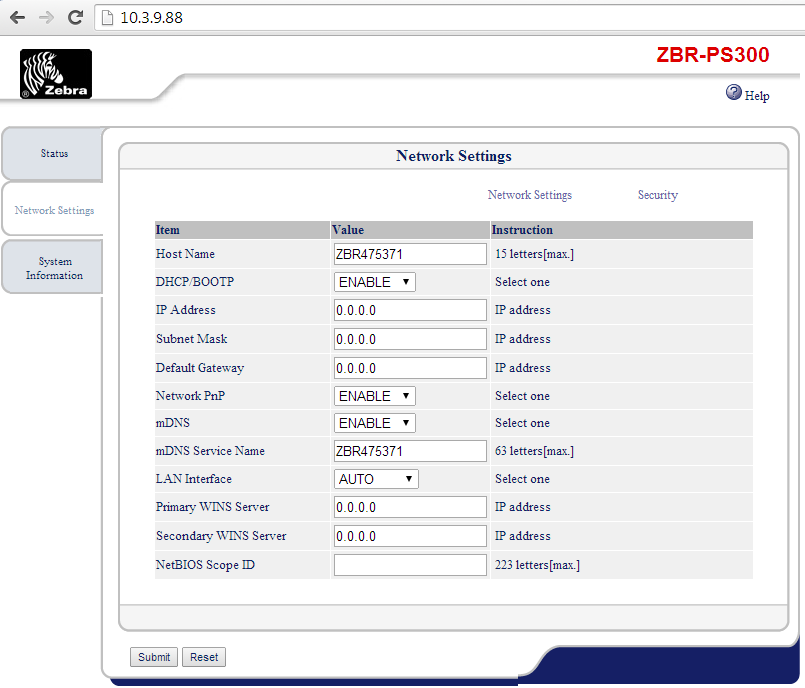
- Make the necessary changes, and then click Submit to send the new configuration to the printer. Please allow a few minutes for the unit to re-establish a connection to the network using the new settings.
 | NOTE When you install the ZXP driver for the printer and select the Ethernet printer, the wizard will attempt to search for the printer on your network. It should detect the printer by IP address (this will not allow for changing of network settings, it is strictly for detection of the printer in the network). The steps above are still required to set a static IP on the unit. |
Installing the Network Driver for the Printer:
- Download the driver for your printer from Zebra.com. Below are links to each printer's support and downloads page:
- Once downloaded, run the installation wizard. Click Next until you reach the option of installing either a USB or Ethernet Printer, select Ethernet:
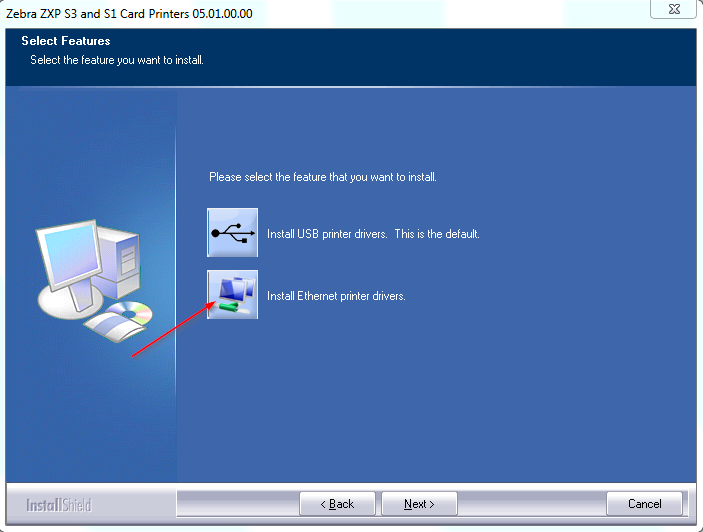
- After clicking Install Ethernet Printer Drivers.
- Click Next until you reach the portion, where the wizard attempts to detect your printer on the network. It may find the printer and display the IP address, with which you can just select the printer and click Next.
- If it does not find the printer, you will have to manually enter the IP address you have assigned to the printer or the IP address that the network has assigned to the device:
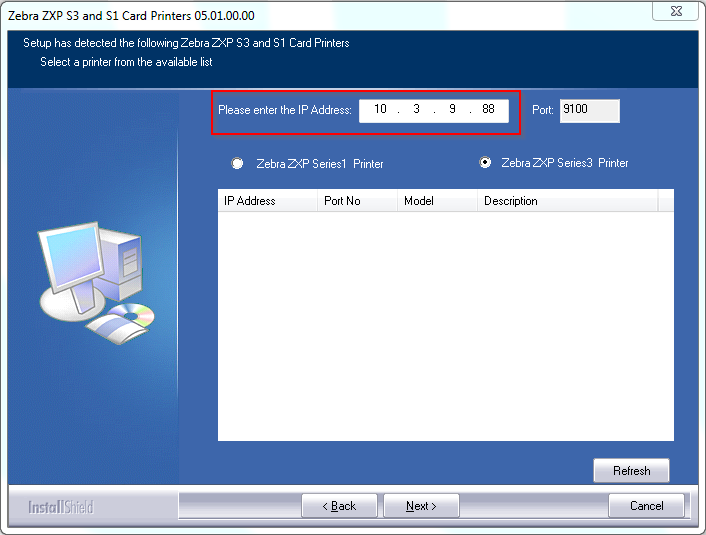
- Once this step is done, you can click Next until the wizard is completed.
- Once complete, test communication by printing a test card through the driver. If this prints, your printer is set up on the network and communicating through the Windows printer driver.
Refer to the article: Printing a Test Card on a ZXP Series 1 and ZXP Series 3 Printer Using the Tools Option for more information.
Helpful Information: