Salesforce

Install CUPS Driver for Zebra Printer in Mac OS

« Go Back

Information

 
Issue / QuestionHow can I install Zebra Printer on Mac OS using the CUPS driver?
What are the steps to install Zebra Printer on Mac OS with CUPS driver?
Why am I facing difficulties while installing Zebra Printer on Mac OS using the CUPS driver?
Can you guide me through the process of installing Zebra Printer on Mac OS with the CUPS driver?
Is there a specific method to install Zebra Printer on Mac OS using the CUPS driver?
Zebra driver for Mac.
Applicable ToZebra Printers on Mac OS X environment
Resolution / Answer
IMPORTANT! Zebra recommends using the Common Unix Printing System (CUPS) driver for Zebra printers on Mac OS X. Most Mac OS X systems come pre-installed with the CUPS driver, eliminating the need for additional downloads. However, specific Zebra card printer models may require separate drivers. Learn more.


NOTE To configure the printer, enter either http://localhost:631/ or 127.0.0.1:631/ to access the CUPS driver, with your Internet browser and read Configuring a Zebra Printer with the CUPS Driver.


Adding the Printer:  

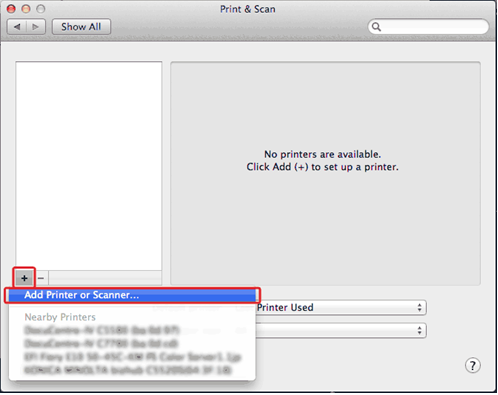
  1. Navigate to Printers and Scanners.
  2. Click (+) and choose Add Printer or Scanner.
    User-added image
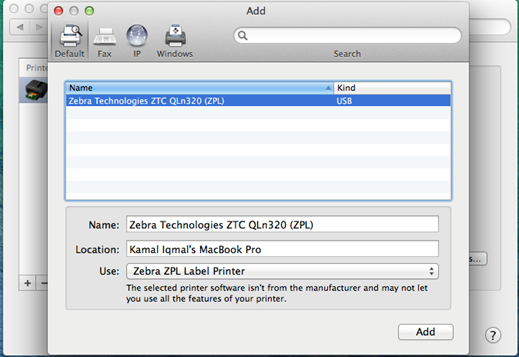
  3. Choose your Zebra Printer. It should be displayed as follows:
User-added image
  1. In the Use section below, select Select Software.
User-added image
  1. You may choose your preferred driver's language. If you do not know which language to use, you may choose ZPL.
User-added image
  1. Click Add to complete the setup.

    User-added image


Helpful Information:


URL NameInstall-CUPS-driver-for-Zebra-Printer-in-Mac-OS
TitleInstall CUPS Driver for Zebra Printer in Mac OS

Powered by