 |
End Of Service Life (EOSL) ZebraDesigner versions 2.x have reached the end of service life. The license activation server associated with these products was retired on the 31st of December 2020. Starting 1st January 2021, licenses for this product can no longer be activated or deactivated, and Zebra can no longer perform license resets or transfers for these products. It is recommended you do not uninstall a working installation of any ZebraDesigner v2 edition. This knowledge article is for your reference only and is no longer proactively updated. See this article for information on replacement products: End Of Service For ZebraDesigner Version 2 Edition.
|
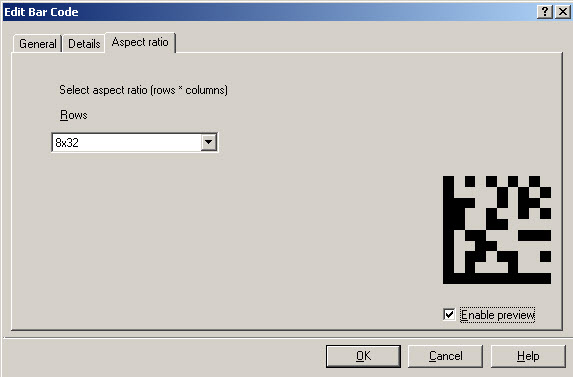
If you pick a rectangular aspect ratio from the list (e.g. 8x32) and Print as a graphic you will get a rectangular Data Matrix (or DataMatrix). See the below procedure for more information.
Procedure:
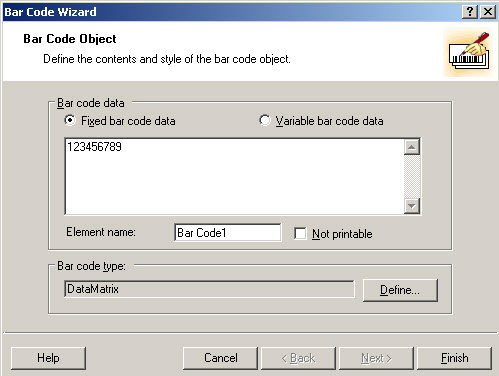
- Once DataMatrix is the selected 2D barcode, select Define…
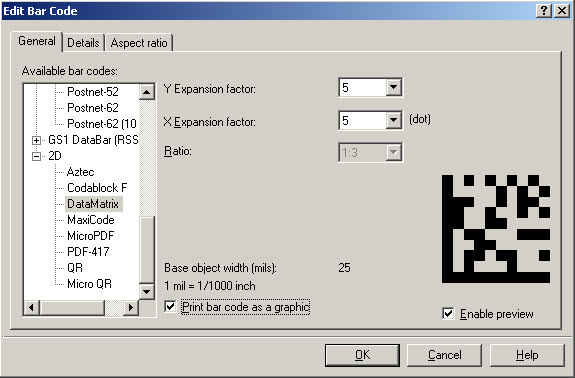
- Check the option to Print barcode as a graphic then choose the Aspect ratio tab.
- From the drop-down list of aspect ratios choose one such as 8x32 that will produce the rectangular shape.
- It is not a supported feature of ZebraDesigner to print a Rectangular DataMatrix barcode if print as graphic is not checked.
IMPORTANT NOTE – if “Print barcode as a graphic” is not checked, the barcode will still appear on your screen as expected but either no barcode will print at all on your label or you may just see a square representation of the barcode printed.
ZPL firmware since x.16.x and above includes a parameter that allows ZPL code to successfully print a rectangular Data Matrix barcode. It is possible to use ZebraDesigner software to create a ZPL template by creating your label and then selecting the option to print to file. You could then manually add the parameter to print the rectangular Data Matrix barcode. The key is adding the 8
th parameter for aspect ratio. The value of 2 = rectangular. For example:
^BY240,80^FT134,281^BXN,5,200,48,16,1,,
2
There are no plans to add a new feature to ZebraDesigner software that will automatically generate the parameter at this time.