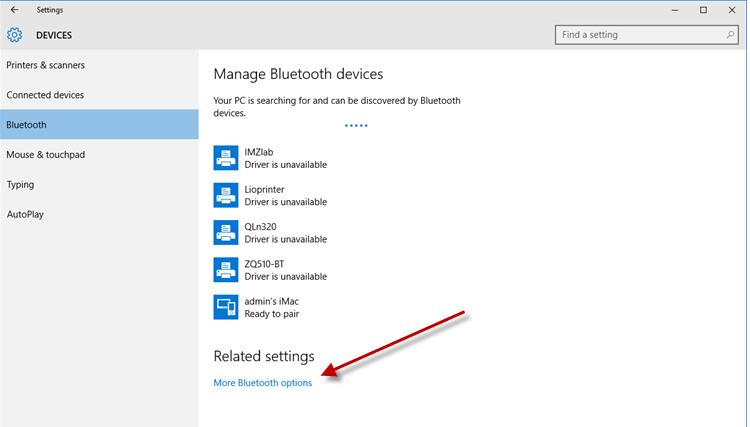
- On Windows 10 Search the web and Windows box, type Bluetooth, and select Bluetooth Settings.
After a few moments, Windows should list your Zebra Bluetooth printer.
- Highlight the printer with the Friendly name you entered in the Zebra Setup Utilities (ZSU) and click Pair.
- When prompted, enter the passcode created in the Zebra Setup Utilities (ZSU) and click Next.
The screen may quickly flash Connected but then will show as Driver is unavailable.
- Click More Bluetooth options.
 | IMPORTANT! Please ensure that you follow the upcoming instructions and select the COM port created by Windows. Failure to choose the correct COM port associated with Windows 10 will lead to errors and prevent the process from working correctly. |
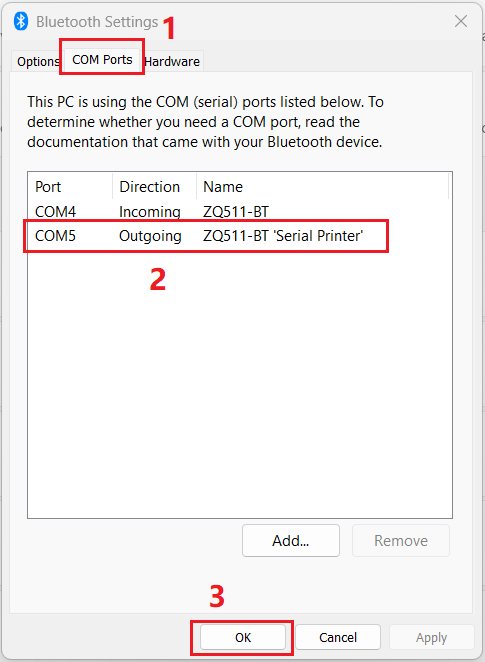
- Click the COM Ports tab and confirm the Outgoing port listed for the Zebra printer and its Friendly name you had previously created. In this example, it would be COM5.
At this point, you can install the printer either with ZDesigner Driver v5 or v10, just become sure to use the right port, COM5 in this example.
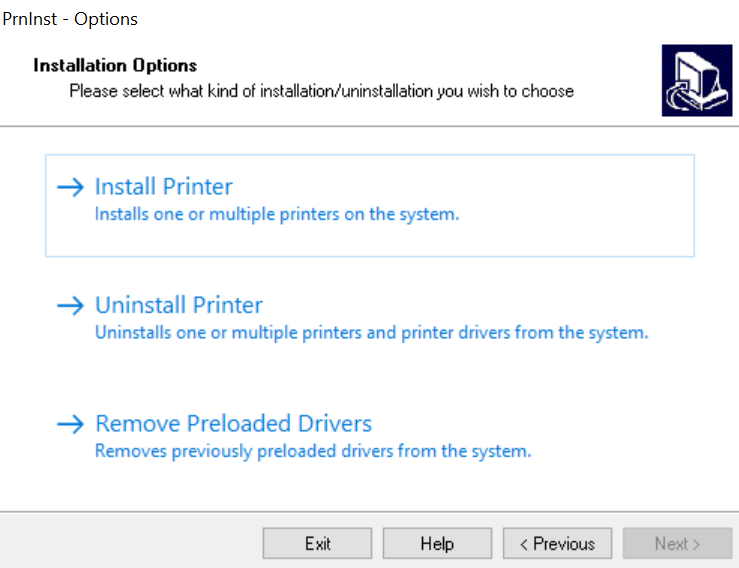
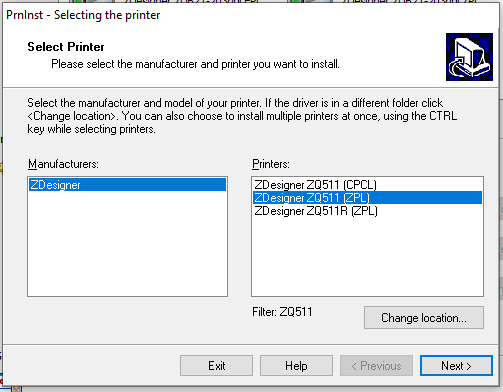
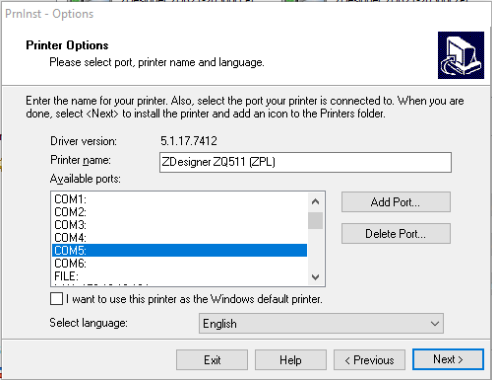
- When the ZDesigner Driver v10 is used, select the option "Other Port" to select the printer model and then the COM5 port.
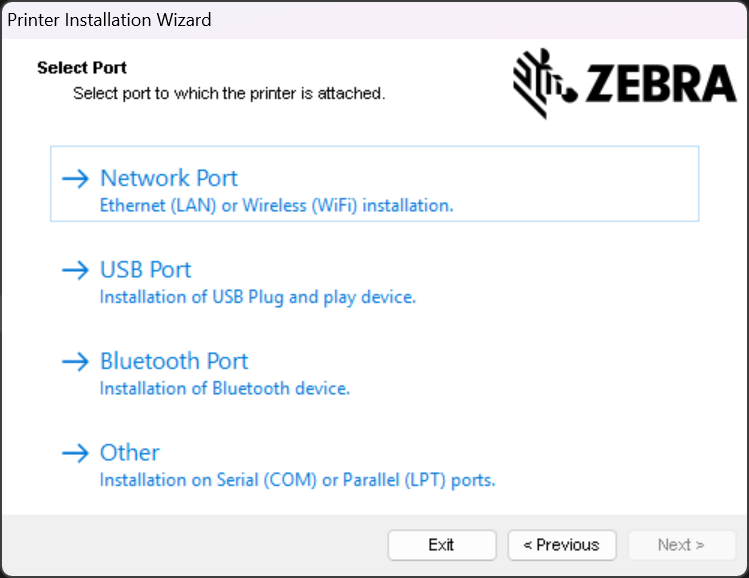
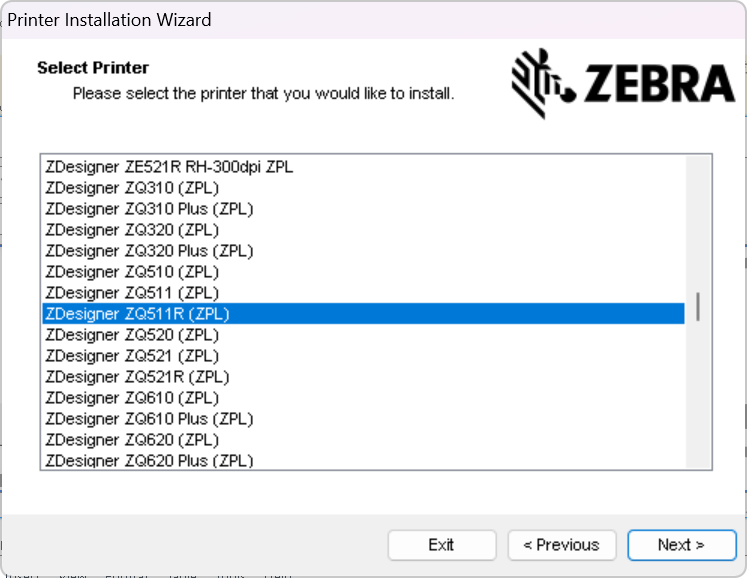
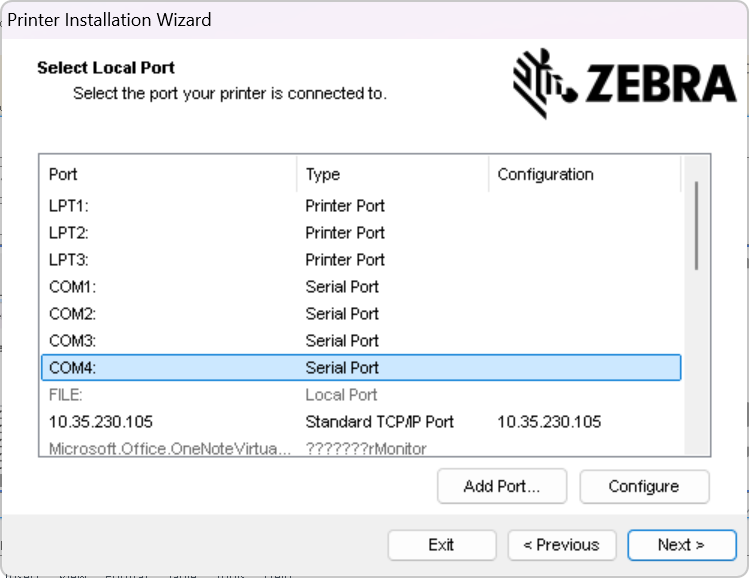
- With the correct port selected, a Test Page prints with no error message. If the correct Port is not available you cannot select a different COM port.
- When you attempt to print you will receive an Error printing from the operating system and from Devices and Printers.
- This means that your Windows 10 is missing a key update that corrected this Microsoft issue. These are suggested steps available from the internet to help with the task of updating your Windows 10 operating system.
- At this point, it is not a Zebra or the ZDesigner driver issue. This was a known MS operating system issue affecting all driver manufacturers that MS updates have resolved.
|
|
NOTE Ensure your mobile printer is not in sleep mode. Sending a job when the printer is in sleep mode, also results in a temporary Error Printing message from the operating system that is corrected as soon as the printer is powered back up.
|