 | NOTE If the devices are experiencing Wi-Fi or other networking issues, you may request logs from the device to help determine the root cause.
Below are the instructions to capture this information via RxLogger logs and Advanced Fusion logs.
Consult your local networking team to run the Server or Network side logging if required.
Before capturing logs, ensure the following basic steps have been taken:
- Password is set correctly.
- Take note of error reproduction steps, any error messages and note the times of failure.
- Gather details regarding network configuration and any recent changes.
- Clear the old logs before starting a new logging session.
|
 | IMPORTANT! Do not leave logging utilities running for extended periods. Enabling logging indefinitely will cause issues. Log sizes are not limited.
Ensure both logging utilities are running at the same time while the error is being reproduced. |
The steps below outline how to start or stop the logging utilities separately.
Once the error is reproduced with logging running, copy the RxLogger and Fusionlogs folders into a .zip folder. Rename the .zip folder with the date and case number, and send the .zip folder to the Zebra support agent.
For RxLogger (Android Only):
Procedure:
- First ensure the time on the device is correct.
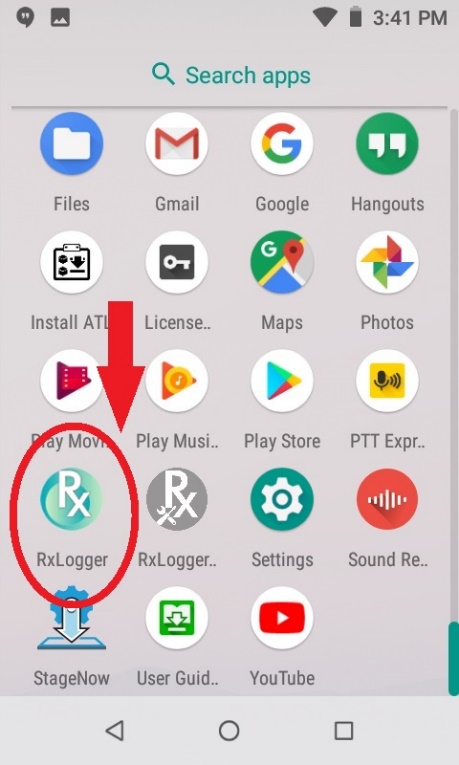
- On your device, navigate to the RxLogger application. (Select the Light blue-green RxLogger app, not the grey RxLogger Utilities app).
- Launch RxLogger.
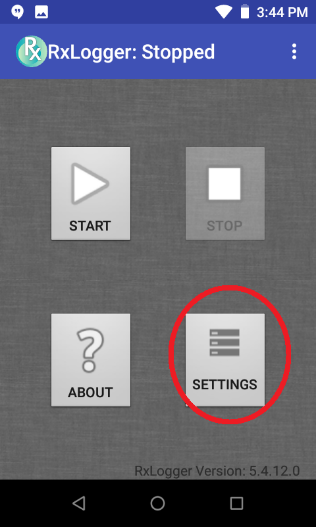
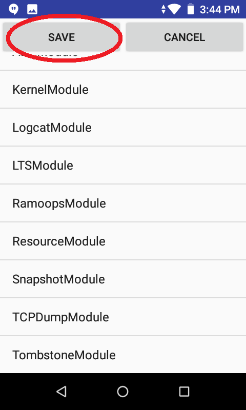
- Select LogcatModule.
- Increase the Main log file count to 20.
- Go Back previous menu.
- Tap SAVE.
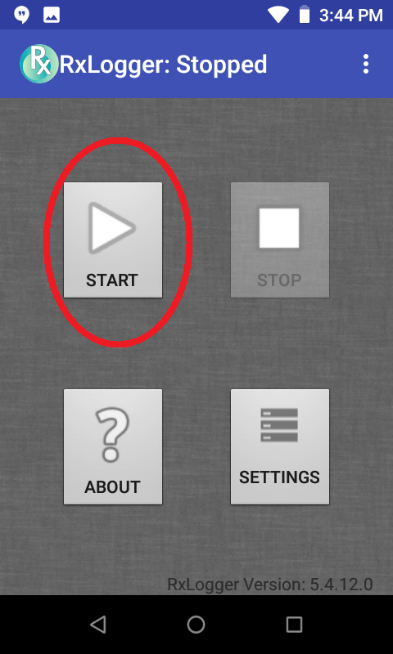
- Tap START to begin logging.
- Once the conditions have been reproduced or testing has ended wait 10 minutes then tap STOP
- For wireless issues see also Advanced Fusion Logging below keep logging running for ~15 minutes to gather all network traffic), tap STOP to disable logging in RxLogger.
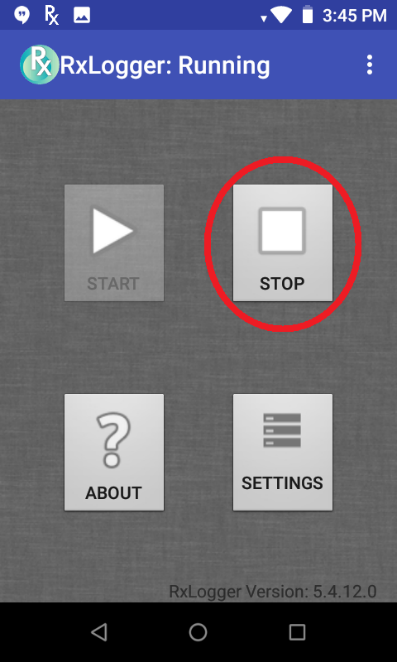
The logs will be stored in the RxLogger folder, accessible by enabling file transfer via USB on the device. The logs are also accessible via ADB using the file path /storage/sdcard0/RxLogger or /sdcard/RxLogger.
Advanced Fusion Logs (For Android devices):
The following example of capturing Advanced Fusion logs utilizes Android Oreo. Therefore, the menus are subject to change with each Android release.
Procedure:
- On your device, navigate to Settings.
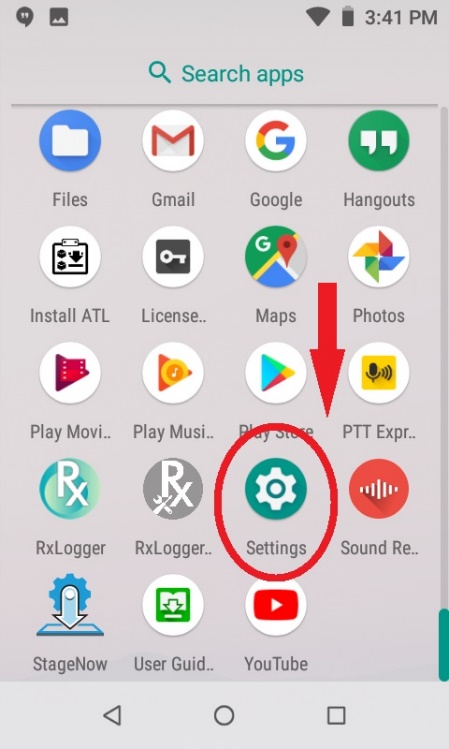
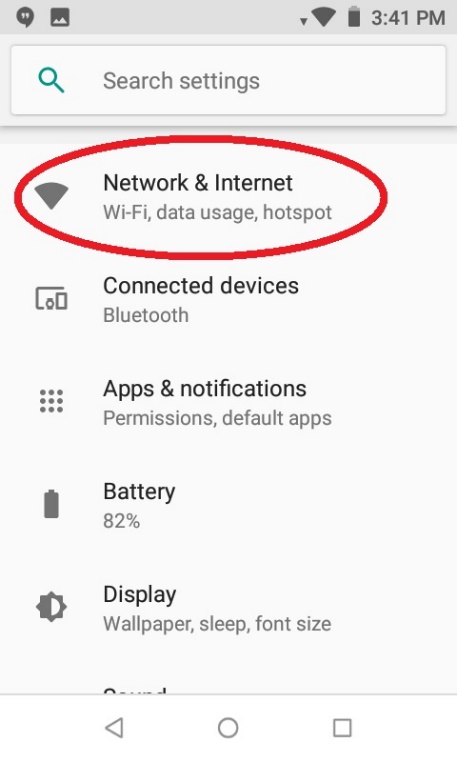
- For Android Oreo, navigate to Network & Internet > Wi-Fi.
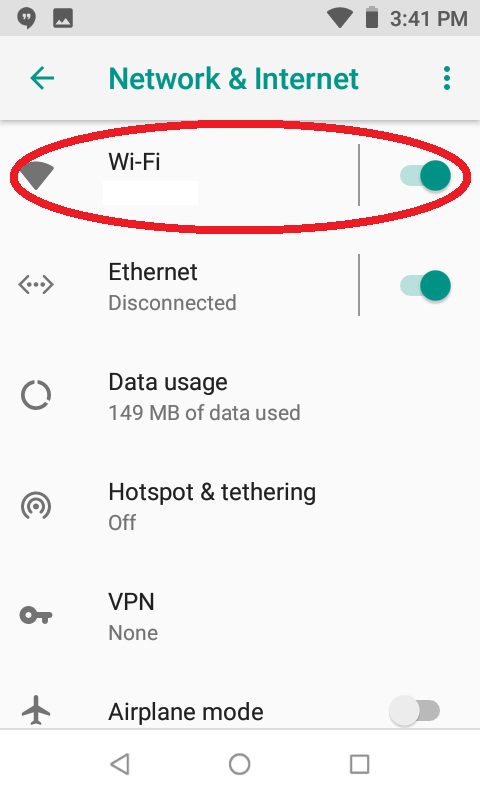
- Scroll to the bottom and navigate to Wi-Fi Preferences > Advanced > Additional Settings. Scroll down to Advanced Logging.
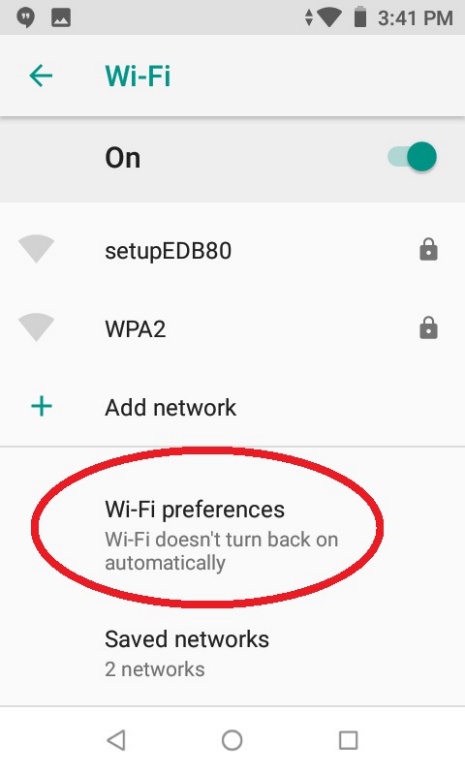
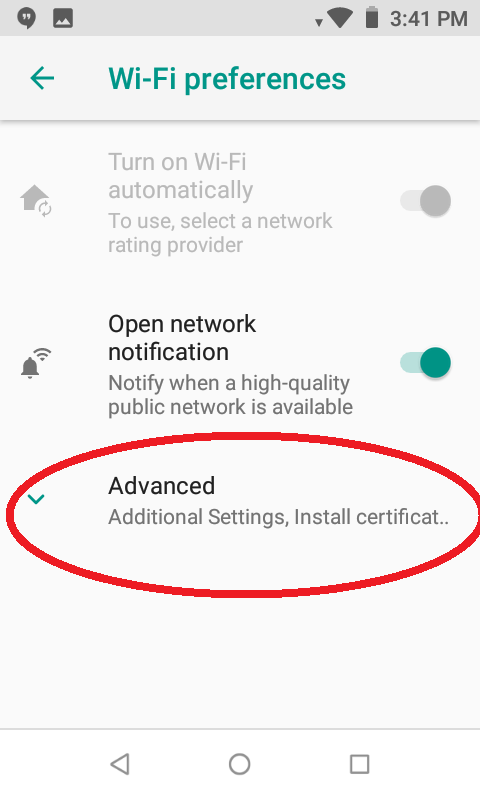
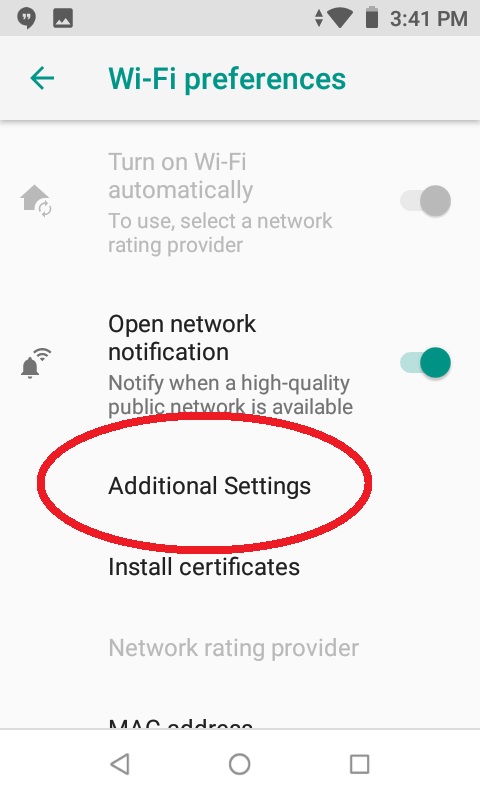
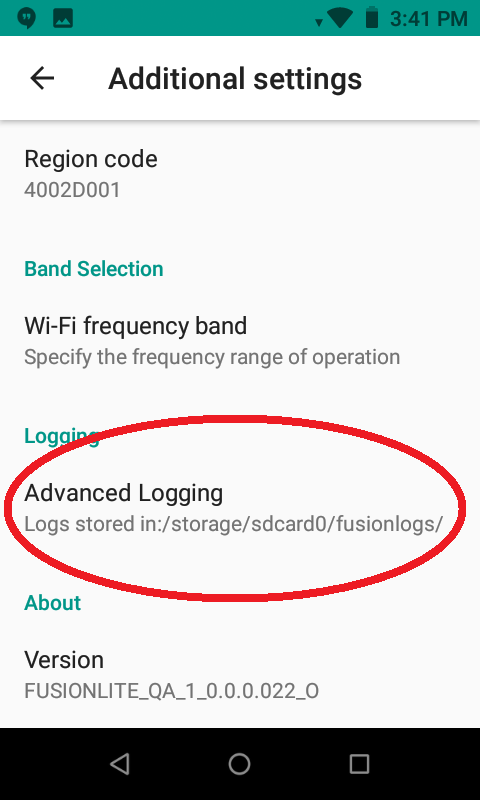
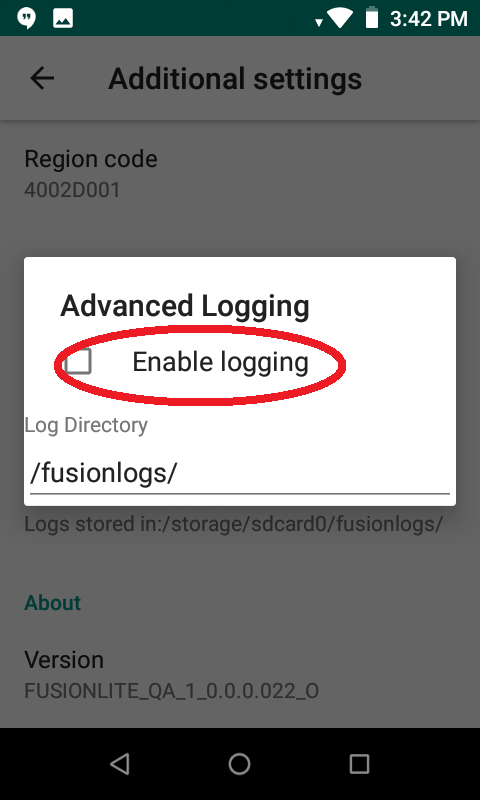
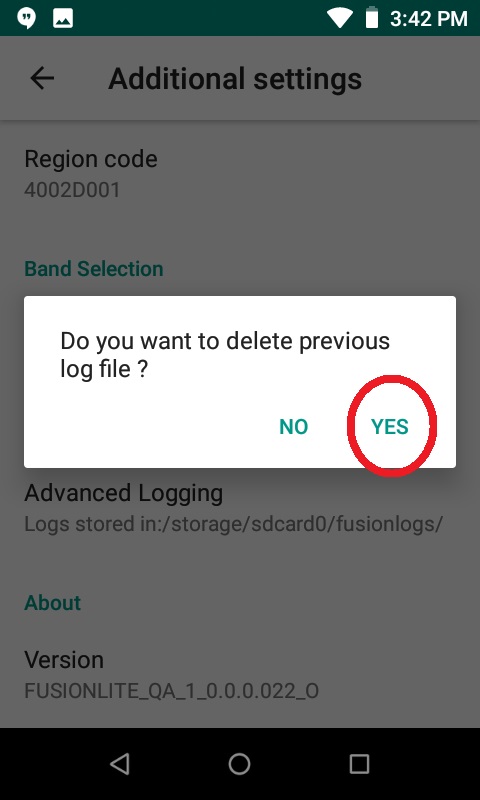
- Tap to select the Enable Logging checkbox. Tap Yes. (For wireless issues, keep logging running for ~15 minutes to gather all network traffic).
- For earlier versions of Android, navigate to Settings > Wi-Fi. You will see a ‘hamburger menu’ (three stacked dots) on the page. Tap it to open a dialog box menu.
- Select Advanced in the dialog box menu and tap Advanced Logging in the additional settings page. Tap to Enable Logging.
- By default, logs will be stored under /storage/sdcard0/fusionlogs. Once testing is over, you can collect the logs from this location or a custom location if you have one configured.
- Once the conditions have been reproduced or testing has ended, *disable* logging by following Steps 1-7 under For RxLogger (Android Only) and Steps 1-6 under Advanced Fusion Logs (For Android devices) to disable Advanced Fusion logging. It is important to disable logging before exporting the files. If logging is not disabled, the files will overwrite and increased memory usage may affect device performance.
Helpful Information: