Android 10 and 11:
Refer to DataWedge Auto Import Using StageNow and SOTI MobiControl
Android 8 and 9 and below:
Part A: Export DataWedge settings
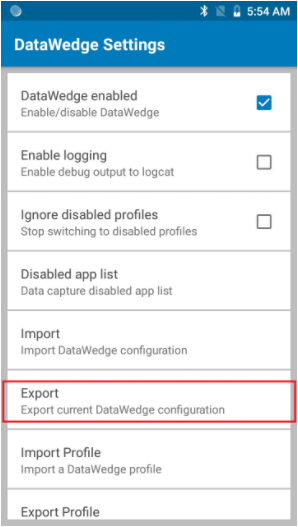
- From the DataWedge Settings panel, tap Export.
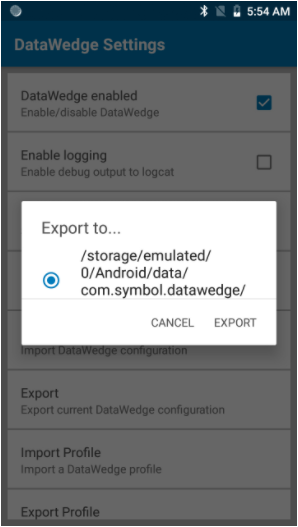
- If multiple storage devices exist, tap the desired storage device, then tap Export. You may only select the storage device; the path will be inserted automatically.
 | NOTE
- The DataWedge Config file is always named
datawedge.db. - The default path and filename of an exported configuration file is:
/storage/sdcard0/Android/data/com.symbol.datawedge/files/datawedge.db - If an external SD card is installed, you can select an alternate path.
- For example:
/storage/sdcard1/Android/data/com.symbol.datawedge/files/datawedge.db - As explained in TechDocs, Do not rename the exported file or manually edit the database file contents. Doing so will result in errors and import failure.
|
- Retrieve the file
datawedge.db from the device and distribute to other devices manually or through a Mobile Device Management (MDM) system.
 | CAUTION DO NOT RENAME THE EXPORTED FILE. Doing so will result in errors and import failure. |
Profiles created with DataWedge 6.5 (or higher) will work on any Zebra device model running DataWedge 6.5 or higher.
Auto Import
DataWedge supports remote deployment of Config files (datawedge.db) and Profiles (dwprofile_profilename.db) to devices through commercially available third-party Mobile Device Management (MDM) systems. When DataWedge launches, it checks the /enterprise/device/settings/datawedge/autoimport directory for the presence of such files. If any are found, it executes the functions below.
Part B: Deploy DataWedge settings via SOTI MobiControl
For Android+ (Device Admin) Mode:
Create a File Sync Rule to deploy the DataWedge configuration files (for example, datawedge.db or dwprofile_profilename.db).
- Start the Android Plus File Sync Rule.
- Set Direction to Download file(s) from Server to Devices.
- Make sure Device File or Folder Name is equal to:
/enterprise/device/settings/datawedge/autoimport/
- For Server File or Folder Name, specify a complete file system path to the DataWedge configuration (.db) file. (For example: datawedge.db or dwprofile_Profile0 (default).db)
For example:
- Select the device(s) or device group(s) that the rule should target.
- For synchronization, use the Device Update Schedule.
- Under review summarized information, select the Advanced button.
- Scroll down and select the Scripts button.
- From the After file synchronization has completed executing script section, enter the below script:
execute_shell chmod 777 /enterprise/device/settings/datawedge/autoimport/datawedge.db
For example:
DataWedge configuration (datawedge.db) is successfully deployed and installed using FileSync Rule.
For Android Enterprise (Device Owner) Mode:
Use the same steps outlined in Part A and B except for Step 9. Use the following scripts:
| NOTE Preceding the "chmod" command is two underscores "__" and not just one. |
__chmod 777 /enterprise/device/settings/datawedge/autoimport/datawedge.db

OR

__chmod 777 "/enterprise/device/settings/datawedge/autoimport/dwprofile_Profile0 (default).db"
For example:
Helpful Information: